guides
Monitor Height Guide: Eye Level, Distance & Tilt
Learn the exact monitor height, distance, and tilt settings that eliminate neck and eye strain, plus how to set up dual monitors correctly.
 Daniel Osei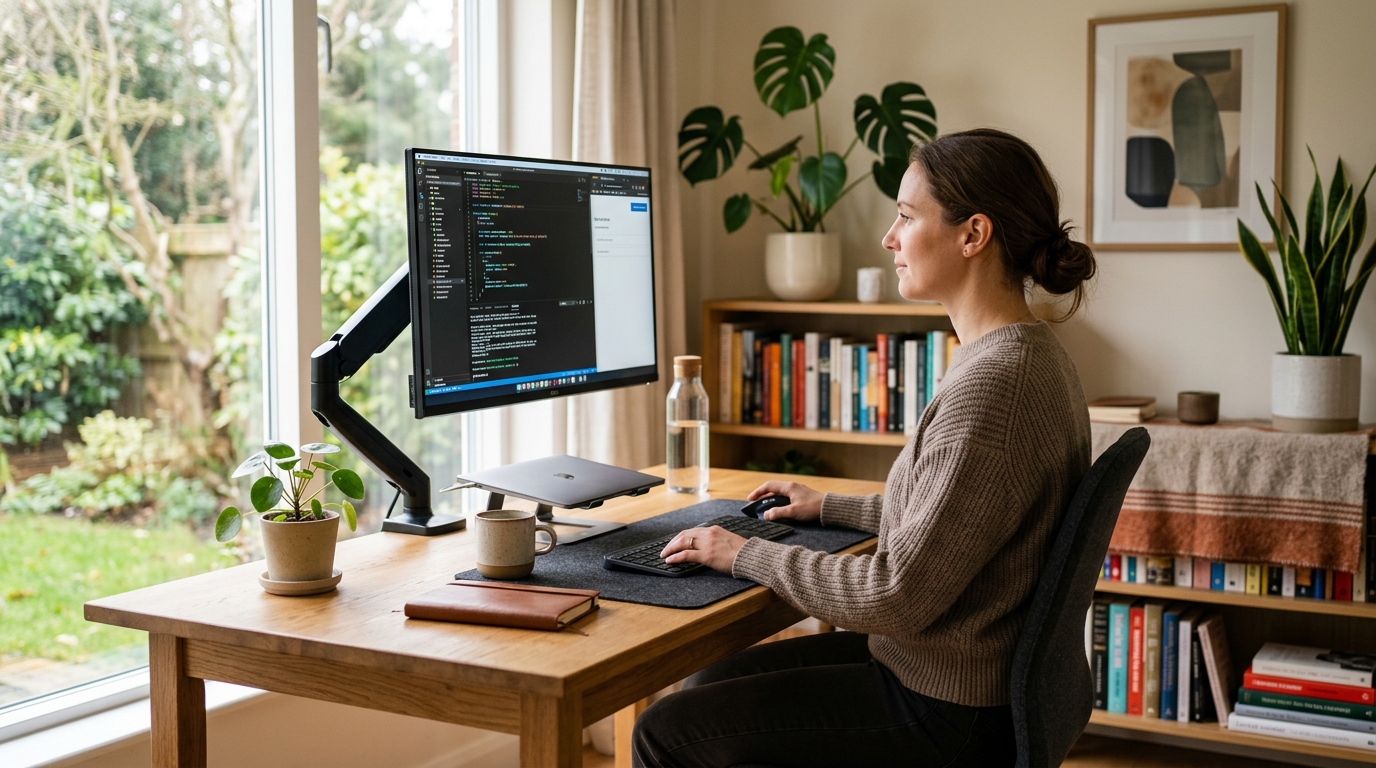
The optimal monitor height places the top edge of the screen at or just below your eye level, with the screen 20–28 inches from your face. This neutral neck position eliminates the forward head lean responsible for most workstation neck and shoulder pain — and getting it right takes about 10 minutes.
What is the correct monitor height?
The correct monitor height positions the top edge of the screen at or just below your seated eye level. The center of the screen winds up 15–20 degrees below your horizontal line of sight, which is the natural resting angle of relaxed eyes.
This is not the same as centering the monitor at eye level — a mistake that forces the eyes upward for half the screen and leads to sustained neck extension, dry eyes, and headaches within a few hours of sustained use.
Why the top edge and not the center? OSHA ergonomic guidelines and research from the Canadian Centre for Occupational Health and Safety both conclude that eyes prefer a slight downward gaze for sustained close work. That angle keeps the upper eyelid partially lowered, reducing exposed eye surface area and slowing tear evaporation — a material factor for anyone who experiences dry eyes at a desk.
The practical implication: if you spend most of the day reading content in the top quarter of your monitor (toolbars, address bars, navigation menus), the screen is almost certainly too low.
How to set your monitor height: 5 steps in order
Step 1: Adjust your chair before touching the monitor
Monitor height is a downstream measurement — it depends on where your eyes land when you are seated correctly. Before touching the monitor, set your chair: feet flat on the floor, hips 1–2 inches above your knees, and your back fully in contact with the lumbar support. See how to adjust your office chair for the full sequence.
Adjusting monitor height before the chair is set guarantees you will redo it.
Step 2: Find your actual eye level with your head neutral
Sit in your normal working posture — not artificially upright. Hold one finger at arm’s length directly in front of your face and let your eyes settle on it without tilting your chin up or down. Note where that finger sits in space. That is your true eye-level reference point.
Many people discover their natural eye level is 1–3 inches lower than they assumed, especially if they habitually tilt their chin downward when looking at screens. Using your assumed eye level rather than your measured eye level produces a monitor that still sits too low.
Step 3: Position the top bezel at that level
Raise or lower the monitor until the top bezel of the screen sits at the height you measured. The center of the screen will now be clearly below eye level — this is correct. If the monitor cannot reach the required height on its factory stand, a monitor riser or monitor arm bridges the gap.
Most monitors shipped on factory stands are 3–5 inches too low for adults between 5 ft 7 in and 6 ft 0 in. If you have never adjusted your monitor height, raising it is almost certainly the right move.
Step 4: Check viewing distance at 20–28 inches
With height correct, check distance. Extend your arm toward the screen — your fingertips should just reach the display surface. This arm-length proxy lands most people at 22–26 inches, within the recommended 20–28-inch range.
If text feels too small at proper distance, increase your OS display scaling to 125–150% rather than moving the screen closer. Scaling text up looks sharper and keeps you at an ergonomically correct distance; moving the screen 6 inches forward at a suboptimal height and angle creates a compound problem.
Step 5: Tilt the screen back 10–15 degrees
Once height and distance are set, tilt the top of the monitor slightly away from you — 10 to 15 degrees backward. This angle keeps the screen surface roughly perpendicular to your natural downward line of sight, and it sends overhead light reflections behind the screen rather than into your face.
A screen tilted forward (top angled toward you) dramatically increases glare. A screen perfectly vertical — zero tilt — is slightly suboptimal for downward-gaze viewing. The 10–15 degree backward tilt is the practical sweet spot for overhead-lit offices.
What is the correct viewing distance?
The 20–28 inch range is the ergonomic consensus, but the right distance for your setup depends on two variables: screen size and text size at typical working zoom.
Larger displays benefit from greater distance. A 27-inch panel at 28 inches shows text that is still clearly legible; a 24-inch display at the same distance may require you to lean forward on dense text pages. The governing test is simple: can you read comfortably without leaning toward the screen? If not, either the screen is too far or the text is too small — and text size is the easier variable to fix.
| Product | Best for | Rating | Notes | |
|---|---|---|---|---|
| Screen at 18 inches | not recommended | ★★☆☆☆ | Too close for most displays. Increases eye strain and creates a disorienting field of motion. Only valid for very small or low-resolution screens. | Check price |
| Screen at 20–24 inches | monitors 24 inches or smaller | ★★★★★ | Correct range for compact displays. Most 24-inch panels and laptop-class external monitors work best at this distance. | Check price |
| Screen at 24–28 inches | monitors 27–32 inches | ★★★★★ | Ideal for most desktop setups with a full-size display. Text stays legible and glare drops with the greater distance. The ergonomic sweet spot for typical office work. | Check price |
| Screen at 30 or more inches | ultrawide and 34-inch-plus monitors | ★★★★☆ | Correct for very large displays to prevent excessive eye movement across the screen. Requires higher display scaling to keep text legible at this distance. | Check price |
The 20-20-20 rule complements correct distance: every 20 minutes, look at something 20 feet away for 20 seconds to let your focusing muscles relax. Viewing distance affects the baseline level of eye fatigue; the 20-20-20 rule reduces cumulative fatigue on top of that baseline. See how to reduce eye strain at computer for the complete protocol.
Special cases: adjusting the rules for your setup
Bifocal and progressive lens wearers
If you wear bifocal or progressive lenses, the standard monitor height rule does not apply. Reading through the lower segment of progressive lenses requires your chin to drop and your gaze to angle more sharply downward. A monitor at standard eye-level height forces you to tilt your chin upward to see through the distance segment instead — causing sustained neck extension that is more damaging than a slightly lowered screen.
Lower the top of the monitor 4–6 inches below the standard rule. The target is the ability to see the full screen through your reading segment without lifting your chin. A monitor arm makes this easy to dial in with small incremental adjustments.
Standing desks
The same eye-level rule applies from your standing height, but standing eye level is typically 6–12 inches higher than sitting eye level. A monitor on a fixed stand set for seated use will be far too low when you switch to standing — producing a chin-down posture that strains the neck in the opposite direction from a too-low seated setup.
A monitor arm that lets you raise and lower the screen quickly is the practical solution. Fixed-height risers work only if your desk itself adjusts — which is the case with a height-adjustable standing desk.
Dual monitor setups
Equal-use dual monitors: Place both screens side by side, inner bezels meeting near your centerline, both at the same height. Turn your chair to face the gap between them. You will spend equal time looking left and right — unavoidable with equal-use monitors, and acceptable provided neither screen requires sustained asymmetric rotation.
Primary and secondary monitor: Place the primary screen directly in front of you at correct eye level and angle the secondary monitor 30–45 degrees to one side. The secondary monitor can sit slightly farther away and slightly lower since you glance at it only occasionally. The primary screen determines the ergonomic setup; the secondary adapts to the space available.
Laptop-only use
A laptop sitting on a desk positions the screen 6–8 inches too low and 12–16 inches too close for ergonomic use. The only correct approach is an external keyboard, external mouse, and a laptop stand or monitor arm that raises the laptop screen to eye level. See best laptop stands for options at every desk configuration.
Tools for achieving the correct monitor height
Most factory monitor stands cannot reach the correct height for users taller than about 5 ft 5 in. These are the two categories of solution.
Best for Best overall monitor arm
Ergotron LX Single Monitor Arm
The LX arm adjusts from 13 to 45 inches above the desk surface, supports monitors up to 34 inches and 25 lbs, and holds any position without drift. It gives you infinite height, depth, and tilt adjustment — the complete solution for anyone whose factory stand cannot reach the correct position. A gas spring means one-hand repositioning in seconds.
★★★★★ 4.8 · 18,400 reviews
Check current price on Amazon→Best for Best budget monitor riser
VIVO Adjustable Monitor Desk Stand Riser
A quick and inexpensive fix for monitors sitting 3–6 inches too low. The VIVO adjustable riser moves from 3.9 to 5.9 inches of lift and supports up to 33 lbs without a VESA mount. Costs around $35 and works under any flat-panel monitor. Ideal for users who just need more height and do not need arm-style reach or rotation adjustment.
★★★★★ 4.6 · 9,600 reviews
Check current price on Amazon→Best for Best value stand with cable management
Amazon Basics Adjustable Monitor Stand
A five-position adjustable all-metal stand with a cable management shelf built in. Fits monitors up to 32 inches and 26 lbs. Height steps from 3.2 to 5.9 inches cover the gap most factory stands leave. Ships fast for Prime members and costs about $40 — the right choice when you want simplicity over the full adjustability of an arm.
★★★★★ 4.5 · 7,300 reviews
Check current price on Amazon→Self-check: is your monitor too high, too low, or correct?
You can assess your current setup in 30 seconds without any tools.
Signs the monitor is too low:
- You tilt your head down or crane your neck forward to read the screen
- The top bezel is visible at your straight-ahead sightline (screen is far below eye level)
- Neck stiffness concentrated at the base of the skull after a few hours
Signs the monitor is too high:
- You feel tension at the front of your throat, or your chin presses toward your chest when you try to look at the bottom of the screen
- The undersides of your eyes feel fatigued — sustained upward gaze strains the inferior rectus muscles
- Looking straight ahead lands your eyes in the middle or lower half of the display
Signs the viewing distance is wrong:
- Leaning forward toward the screen during focused reading (too far away or text too small)
- Leaning back and squinting (too close, text too large and visually overwhelming)
- Dry eyes that ease when you move closer (too far, compensating by widening eyes to see clearly)
FAQ
Frequently asked questions
Should the center or top of the monitor be at eye level?
How high should a monitor be on a standing desk?
Can a monitor be too high?
How far should a 27-inch monitor be from your eyes?
Does monitor height affect eye strain?
What is the correct monitor height for a 6-foot person?
Bottom line
The single most impactful adjustment in most workstation setups is raising the monitor — specifically, getting the top edge to eye level rather than leaving it at whatever height the factory stand provides. Set viewing distance at arm’s length, tilt the screen 10–15 degrees back, and lower the monitor 4–6 inches from the standard rule if you use bifocal or progressive lenses.
When the factory stand cannot reach the correct height, a monitor arm is the highest-leverage workstation upgrade available. Browse best monitor arms and best monitor stands for options at every price point. For the full workstation picture beyond the monitor, see the ergonomic office setup guide and how to reduce eye strain at computer.