guides
How to Reduce Eye Strain at Your Computer
Beat digital eye strain with the 20-20-20 rule, proper screen setup, and room lighting fixes. Practical steps that work without expensive gear.
 Daniel Osei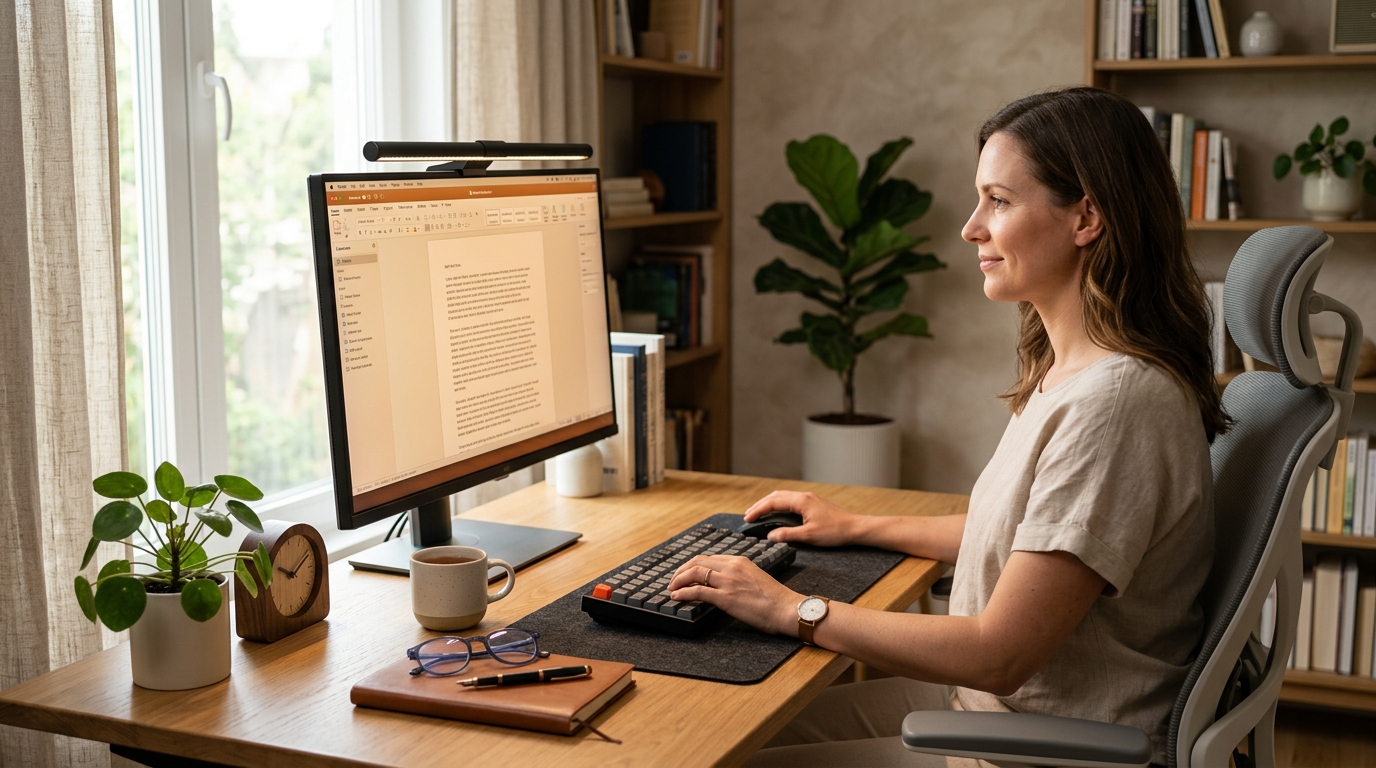
To reduce eye strain at a computer: apply the 20-20-20 rule (every 20 minutes, look at something 20 feet away for 20 seconds), set monitor distance to 20-28 inches, match screen brightness to ambient room light, and increase text size so you stop leaning in. Those four changes eliminate the majority of digital eye strain within days.
Why does screen use cause eye strain?
Digital eye strain — also called computer vision syndrome — affects an estimated 50-90% of computer users who work more than two hours per day on screens. It is not caused by screens damaging the eyes. It is caused by the visual work the eyes must perform continuously without the normal breaks that occur in everyday non-screen life.
Three mechanisms drive most eye strain at a computer:
Accommodation fatigue. Your ciliary muscles are constantly contracting and releasing to keep the screen in focus. Looking at a single fixed distance for hours leaves these muscles in a sustained partial-contraction state that builds up as soreness, blurriness, and headache — the same way your hand cramps after writing for a long time.
Reduced blink rate. Blinking spreads the tear film across the eye surface. During focused screen work, blink rate drops dramatically, leaving the tear film to evaporate and the eye surface exposed. This produces the gritty, burning sensation typical of computer use and, over time, worsens chronic dry eye.
Contrast and glare loading. The eye’s photoreceptors work harder when they have to process a bright screen against a dark background, or when reflected light creates glare on the screen surface. Every mismatch between screen brightness and ambient light adds to the visual workload.
How to reduce eye strain at a computer: 8 steps
Step 1: Follow the 20-20-20 rule
Every 20 minutes, stop looking at the screen and look at a target at least 20 feet away for at least 20 seconds. This is not just a rest — it is active accommodation reset. Looking at a distant target causes the ciliary muscles to fully relax from the near-focus contraction they have been holding for 20 minutes.
Set a recurring timer on your phone or use a computer app like Stretchly (free) or Time Out to remind you. Desk workers who follow this rule consistently report significant reductions in end-of-day eye fatigue within the first week.
The minimum effective version: every 20 minutes, look out a window at buildings or trees across the street for 20 seconds, then return to work. That is the entire intervention.
Step 2: Set monitor distance to 20-28 inches
Measure from the tip of your nose to the screen. The optimal range for most adults is 20-28 inches — roughly arm’s length. Within this range the eye does not have to work at maximum accommodation, and text is still readable without squinting.
Two errors are equally common:
- Too close (under 18 inches): Forces maximum accommodation contraction continuously. Common when the monitor sits too low and users lean forward to read — fix the monitor height first.
- Too far (over 30 inches): Users squint, and increasing text size becomes necessary. Far monitors often result in a forward head lean to get closer.
If you are comfortable with the monitor at the correct height and distance but text still feels small, increase your OS display scaling or browser zoom rather than pulling the screen closer.
Step 3: Position the monitor at or slightly below eye level
The top edge of the screen should sit at or slightly below eye level — ideally 10-20 degrees below horizontal gaze. This natural downward gaze angle partially closes the eyelid, which covers more of the eye surface and slows tear evaporation compared to the wide-open gaze required when looking upward at a screen.
A monitor too high forces the eyes open wide (accelerating dry eye) and the neck into extension, compounding eye and neck strain together. A monitor arm provides the easiest full adjustment — both height and distance — in one tool.
Step 4: Match screen brightness to the room
Open a white browser tab and hold a sheet of white paper next to the screen. If the screen looks like a light source compared to the paper, it is too bright for the room. If the screen looks dull and grey compared to the paper, it is too dim.
Adjust screen brightness until the white on screen and white on paper look roughly similar in intensity. This is the single best objective test for correct brightness. Most people working in an office with overhead fluorescent lighting are comfortable at screen brightness between 100-200 cd/m² — significantly lower than the factory default of most monitors (250-350 cd/m²).
Tools that automate this:
- f.lux (free) — reduces color temperature and brightness automatically after sunset, reducing evening eye strain and improving sleep
- Windows Night Light / macOS Night Shift — built-in color temperature shift with a schedule
- Monitor hardware controls — always prefer hardware brightness adjustment over software overlays, which reduce contrast rather than actual backlight output
Step 5: Eliminate screen glare at its source
Glare comes in two forms. Direct glare is a bright light source within your field of view — usually a window or overhead light that reflects directly off the screen. Indirect glare is light hitting your eyes from the side, causing pupil constriction that makes the screen look darker and forces you to increase brightness.
Fix both before buying a filter:
- Position the desk so windows are to the side of the monitor, not in front of or behind it
- Use blinds or curtains to prevent direct sunlight from hitting the screen
- Position overhead lights so they do not reflect in the screen surface
If glare persists after these adjustments, a matte anti-glare screen protector ($20-50) diffuses reflected light without reducing image quality. Anti-glare film is genuinely effective; high-end monitors often use matte-coated panels for exactly this reason.
Step 6: Increase text size until you stop leaning forward
If you are leaning toward the screen to read text, the text is too small — not the monitor too far. Leaning forward shifts the monitor inside the optimal distance range and sets up forward head posture at the same time.
Increase display scaling to 125-150% in Windows (Settings > Display > Scale) or macOS (System Preferences > Displays > Resolution) rather than increasing only browser zoom. System-wide scaling increases text across every app, not just the browser, and is more sustainable long-term.
For users over 40 who notice progressive worsening of screen readability: discuss computer-distance prescription glasses with your optometrist. Single-vision computer lenses optimized for 24-inch distance are significantly sharper at screen distance than distance correction, bifocals, or progressives.
Step 7: Add bias lighting behind the monitor
Bias lighting — a strip of LED lights behind the monitor — reduces the contrast ratio between the bright screen and the dark wall behind it. This is the same principle used in theater projection rooms: a slightly lit surround reduces the apparent harshness of the bright center and allows the pupil to relax rather than constantly cycling between bright and dark zones.
A bias lighting strip ($15-40) is one of the highest-impact, lowest-cost eye strain interventions available. Attach the strip to the back of the monitor, set it to a neutral white (around 6500K to match the monitor), and set the brightness to roughly 10% of the screen brightness.
Step 8: Lubricate before symptoms start
By the time the eyes feel gritty or burning, the tear film has already broken down significantly. Preservative-free lubricating eye drops used proactively — once in the morning and once midday before symptoms appear — maintain the tear film through the session. Drops used only after symptoms appear provide temporary relief but do not prevent the next episode.
Look for drops labeled “preservative-free” or packaged in single-use vials. Preservatives in multi-dose bottles (benzalkonium chloride in particular) are fine for occasional use but cause irritation with the frequent application that computer work requires.
Common eye strain triggers and fixes
| Product | Best for | Rating | Notes | |
|---|---|---|---|---|
| Screen too bright for room | causes constant pupil constriction in dark rooms | ★☆☆☆☆ | Match screen brightness to ambient room light. Use the white-paper test for calibration. | Check price |
| Glare on screen surface | adds reflected-light workload on top of screen content | ★☆☆☆☆ | Reposition desk so windows are to the side. Add anti-glare film if glare persists after repositioning. | Check price |
| Monitor too close (under 20 inches) | forces maximum accommodation without relief | ★☆☆☆☆ | Move monitor to 20-28 inches. Increase text size rather than pulling the screen closer. | Check price |
| No 20-20-20 breaks | ciliary muscle fatigue builds continuously | ★☆☆☆☆ | Set a timer. Twenty seconds of distant focus every 20 minutes resets the focusing muscles fully. | Check price |
| Low blink rate with no drops | tear film evaporates and leaves dry eye | ★☆☆☆☆ | Use preservative-free lubricating drops once or twice daily before symptoms appear. | Check price |
Gear that genuinely reduces eye strain
Best for Monitors with glossy panels in bright rooms
Anti-Glare Matte Screen Protector
A matte-finish anti-glare film diffuses reflected light across the screen surface, eliminating sharp specular reflections that force the eye to work around glare. High-quality options preserve color accuracy and contrast. 3M, Photodon, and Ocushield make well-regarded versions for common monitor sizes from 24 to 34 inches.
Check current price on Amazon→Pros
- Eliminates specular glare from windows and overhead lights
- Works on any monitor without software or settings changes
- One-time install with no recurring cost
Cons
- Matte surface slightly reduces pixel-level sharpness vs. bare glossy glass
- Requires careful installation to avoid dust bubbles
Best for Reducing contrast between bright screen and dark wall
Bias Lighting LED Strip
An LED strip mounted behind the monitor at 6500K neutral white raises the ambient brightness of the surrounding wall, reducing the perceived brightness ratio between the screen and its surroundings. This allows the pupil to settle at a middle aperture rather than cycling between constricted (bright screen) and dilated (dark room). Govee and Philips Hue make popular options in common sizes.
Check current price on Amazon→Pros
- Reduces pupil strain from screen-to-background brightness contrast
- Improves overall workspace comfort for long sessions
- Some models sync to screen content automatically via HDMI
Cons
- Requires cable management behind the desk to look clean
- Color-syncing models add cost and complexity not needed for basic eye strain relief
Best for Evening screen use when blue light disrupts melatonin production
Blue Light Blocking Glasses
Blue light glasses filter short-wavelength light that suppresses melatonin, making evening screen use less disruptive to sleep. The evidence is strongest for evening use — blue light in daytime hours does not affect sleep and filtering it during the day reduces useful alertness signals. Look for lenses with a visible amber tint for the highest blue light reduction, or clear lenses for daytime wear.
Check current price on Amazon→Pros
- Strongest evidence for improving sleep quality from evening screen use
- Non-prescription versions available for under $20
- Can be worn over contact lenses
Cons
- Amber-tinted lenses shift color perception, making color-accurate work difficult
- Daytime use reduces alerting blue light with limited eye strain benefit
What to skip
Dark mode as an eye strain cure. Dark mode reduces overall screen brightness in low-light environments and can help with contrast sensitivity, but it does not reduce eye strain from accommodation fatigue or low blink rate — the two main mechanisms. In bright rooms, light-on-dark text can have lower contrast than dark-on-light, making dark mode counterproductive. Use dark mode where you prefer it aesthetically; do not rely on it as a clinical intervention.
Blue light filters as a primary daytime fix. Blue light reduction software and glasses are commonly marketed as the solution to digital eye strain. The American Academy of Ophthalmology’s position is that there is insufficient evidence that blue light causes digital eye strain, and that the 20-20-20 rule, proper monitor positioning, and blinking are the evidence-backed interventions. Blue light glasses have real value for sleep — less so for daytime eye strain specifically.
Eye exercises that claim to improve vision. Palming, eye rolling, and focus-shift exercise routines do not correct refractive errors or reverse accommodation fatigue. The 20-20-20 rule accomplishes the actual mechanical goal — accommodation reset — without structured exercise routines.
FAQ
Frequently asked questions
Does the 20-20-20 rule actually work?
How far should my monitor be from my eyes?
Do blue light glasses actually help with eye strain?
Why do my eyes hurt after just one hour of screen use?
Is eye strain from screens permanent?
What is the best monitor setting to reduce eye strain?
Bottom line
The effective anti-eye-strain protocol is four habits: 20-20-20 breaks every 20 minutes, monitor at 20-28 inches at or below eye level, screen brightness matched to the room, and preservative-free lubricating drops before symptoms start. These directly address accommodation fatigue, reduced blink rate, and contrast loading — the three actual mechanisms behind digital eye strain — and cost nothing except the drops.
For the complete desk setup that supports eye health alongside posture and comfort, see the ergonomic office setup guide and how to set up an ergonomic workstation. If lighting is the primary issue, best office lighting covers desk lamps and light panels calibrated for screen work. For the full picture on blue light, best blue light glasses reviews the leading options across daytime and evening use.