guides
How to Set Up Dual Monitors Ergonomically
Step-by-step guide to dual monitor ergonomics: correct height, distance, angle, and placement to prevent neck strain and eye fatigue.
 Daniel Osei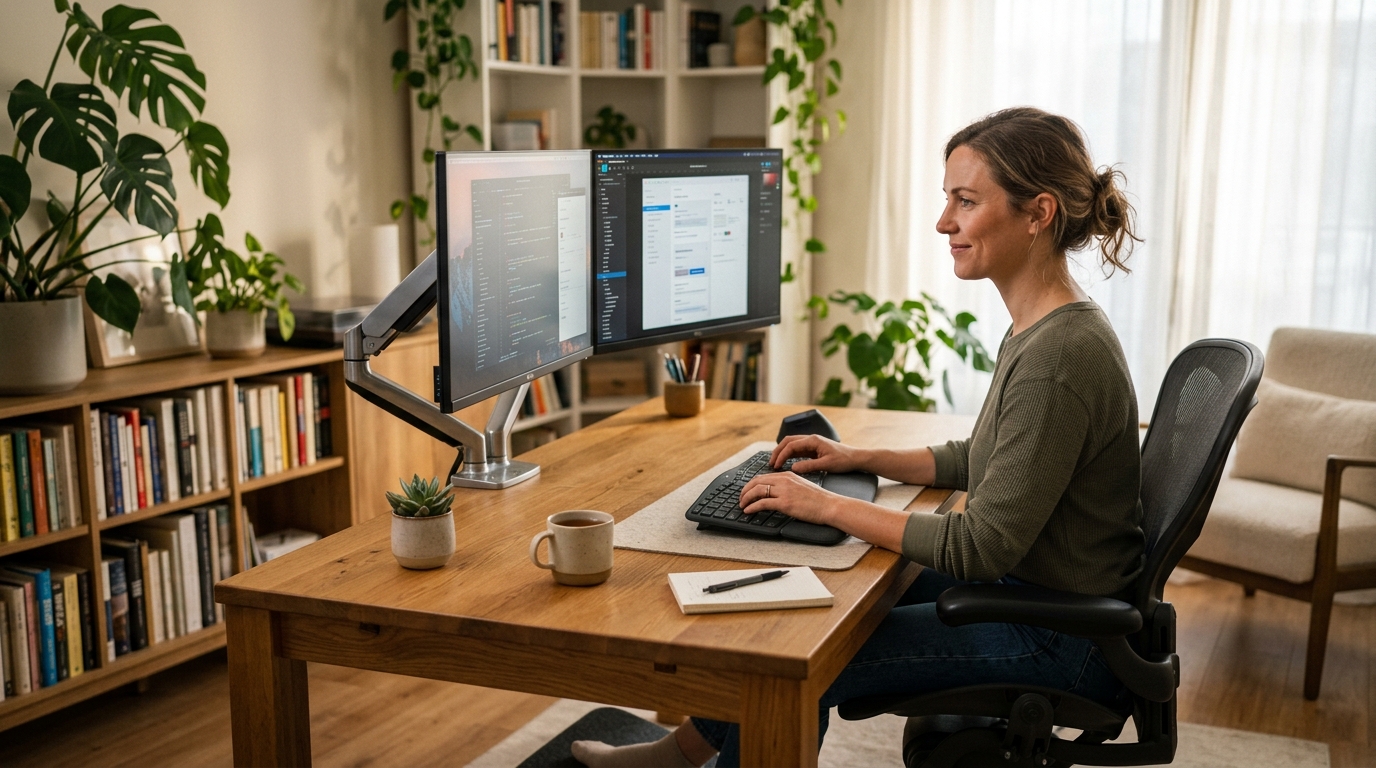
For a side-by-side dual monitor setup, center your primary monitor directly in front of you with its top edge at eye level, then place the secondary monitor adjacent with inside edges nearly touching. If you split time evenly between both screens, angle each inward 15 to 20 degrees toward your centerline. The full adjustment takes under 15 minutes.
What equipment do you need for a dual monitor ergonomic setup?
A dual monitor setup needs the right mounting hardware to position both screens correctly at the same height. Standard monitor stands rarely allow precise height matching between two monitors of different sizes, and a desk crowded with two separate stands typically leaves too little room for a keyboard at the correct distance from the screens.
Dual monitor arm or two independent arms: A dual arm (single pole with two articulating arms) is the most space-efficient solution. It mounts with one clamp and positions both screens independently for height, tilt, depth, and pan. Two separate single arms also work and offer slightly more independent positioning flexibility. Either approach clears the full desk surface below the monitors. The Ergotron LX Dual Stacking Arm ($230–280) and the VIVO dual monitor arm ($50–70) are the two most-recommended options in the category.
VESA-compatible monitors: Nearly all monitors sold in the past decade support VESA 75x75mm or VESA 100x100mm mounting patterns required by monitor arms. Check the back panel or the spec sheet before ordering. A small number of ultra-wide and curved monitors use proprietary stands with no VESA pattern — these require an adapter or a different mounting solution.
A desk with sufficient width: Two 27-inch monitors side by side span roughly 55 to 58 inches. You need at least 48 inches of desk width to fit both monitors at the correct arm’s-length viewing distance and still have room for your keyboard, mouse, and other peripherals in front of them. A 60-inch desk is comfortable; 72 inches is generous.
How to set up dual monitors ergonomically: 8 steps
Step 1: Decide which monitor is primary
The primary monitor is the screen you use most — the code editor rather than the reference window, the email client rather than the calendar, the main browser rather than the communications panel. This monitor goes directly in front of you, centered on your nose. The secondary monitor sits to the side.
If you genuinely split your time 50/50 between both screens, note this and use the equal-angle configuration in Step 4 instead of the offset layout described for most users.
Step 2: Mount both monitors on arms or stands
Attach both monitors to their arms or position them on their stands. At this stage, do not worry about final placement — just get both screens off the desk surface so they can be adjusted. If you are using a dual clamp-mount arm, confirm the clamp fits your desk thickness (most accommodate desks up to 2.5 inches thick) and that the arm pole reaches both the left and right monitor positions from the clamp point.
Check that the arms or stands can independently reach the correct height for both screens. Most standard monitor stands max out at 17 to 18 inches above the desk surface, which is often below the correct eye-level height for seated adults.
Step 3: Position the primary monitor directly in front of you
Sit in your chair in your normal working position with your back against the lumbar support. The primary monitor should align with your nose — not angled to one side, not sharing a center position with the secondary monitor. Move it until the center of the screen is roughly at your body centerline.
This single placement decision eliminates the majority of neck rotation that causes headaches and trapezius tension in dual-monitor users. When both monitors are centered equally (a very common mistake), the seam between them falls at nose level and every glance at either screen involves a head turn.
Step 4: Position the secondary monitor adjacent to the primary
For users with a 60/40 or greater split (most common): Slide the secondary monitor so its inside edge is 0 to 1 inch from the inside edge of the primary monitor. The two screens should nearly touch. This minimizes the rotation angle required to shift from primary to secondary — typically 20 to 30 degrees, which is within the comfortable range for occasional glances without neck strain.
For users with a 50/50 split: Position both monitors so your nose points at the seam between them. Angle each monitor inward 15 to 20 degrees toward your centerline. This splits the rotation equally — about 15 to 20 degrees to each side — and keeps any individual screen well within the comfortable viewing cone.
Do not leave a visible gap between the monitors in a side-by-side layout. A gap shifts the secondary monitor farther to the side and widens the rotation angle required to see it clearly.
Step 5: Set correct height — top edge of each screen at eye level
Raise or lower both monitors until the top edge of each screen aligns with your eye level when you are sitting in your normal working posture. With the top at eye level, your natural downward resting eye angle (15 to 20 degrees below horizontal) lands near the center of the screen — where most reading and work activity occurs.
Both monitors should have their top edges at the same height, even if the monitors are different physical sizes. If one screen is shorter, its top edge will still be at eye level but more of its lower area will be visible. Aligning bottom edges or screen centers across mismatched monitor sizes forces constant vertical eye adjustment between screens, which is more fatiguing than the size difference itself.
Step 6: Set correct viewing distance — arm’s length from each screen
Sit with your back against the chair backrest and reach toward your primary monitor. Your fingertips should just graze or nearly reach the screen at full arm extension — roughly 24 to 28 inches. If your arm is fully extended and the screen is still a few inches out of reach, bring the monitor slightly closer. If your elbow is bent significantly while touching the screen, push it back.
For large monitors (32 inches or bigger), a slightly greater distance — 28 to 32 inches — may be more comfortable, since the screen fills a larger portion of your visual field at the closer range.
Apply the same distance check to the secondary monitor. The secondary screen is often pushed farther back than the primary to make room on the desk; if possible, keep both at similar distances so your focus distance stays consistent.
Step 7: Tilt both monitors slightly away from you
After setting height and distance, tilt the top of each monitor back 10 to 15 degrees from vertical. This compensates for your natural downward eye angle and ensures that the top and bottom of the screen are at similar visual distances from your eyes. A perfectly vertical monitor has its bottom several inches closer than its top, which creates a small but consistent focal shift as your gaze moves up and down the screen.
Tilt both monitors to the same angle so the viewing geometry is consistent when you shift your gaze between them.
Step 8: Match brightness and color temperature on both screens
Mismatched brightness between two monitors is one of the most overlooked sources of eye fatigue at a dual monitor workstation. When one screen is significantly brighter than the other, your pupils constrict and dilate with every gaze shift between them. Over a full workday this accumulates into real fatigue.
Open the display settings on each monitor and set brightness to the same level — typically 80 to 120 cd/m² in a typical office environment. Also match color temperature: most monitors default to either 6500K (cool blue-white) or 5000K (neutral daylight). If both monitors have accessible display menus, set both to the same value. If one monitor allows hardware calibration and the other does not, match the limited one to the calibrated one by eye as closely as possible.
Primary vs secondary monitor: which layout is right for you?
The correct dual monitor layout depends on how you actually divide work between the two screens:
70/30 or greater: Primary monitor centered in front of you; secondary monitor to the side with inside edges touching. You face forward for most of your work and only rotate occasionally to check the secondary screen.
60/40: Same offset layout, but pay attention to where your head tends to rest during natural pauses. If you find yourself instinctively looking at the seam between monitors between tasks, shift the primary monitor slightly toward that seam.
50/50: Both monitors angled inward 15 to 20 degrees, nose pointing at the seam. This splits rotation symmetrically at about 15 to 20 degrees to either side. Some users leave a narrow 1 to 2-inch gap at the seam so the eyes can rest at a neutral forward-facing center position between tasks.
Vertical stacking: If desk width is limited, one monitor can be mounted directly above the other on a vertical pole arm. This eliminates left-right neck rotation entirely, replacing it with moderate up-down movement between screens. Vertical stacking works best for reference-heavy workflows — code below, documentation above — where you keep one window per screen open continuously rather than actively switching between them.
Best mounting options for a dual monitor setup
| Product | Best for | Rating | Notes | |
|---|---|---|---|---|
| Ergotron LX Dual Stacking Arm | best dual arm for most desks | ★★★★★ | Single pole, two independent arms. 17.6 lb capacity per arm. 10-year warranty. Gas spring motion. | Check price |
| VIVO Dual Monitor Mount | best budget dual arm under $70 | ★★★★☆ | Side-by-side and stacking configurations. 17.6 lb per arm. Fits desks up to 2.36 inches thick. | Check price |
| Flexispot Dual Monitor Arm | best for heavier monitors up to 22 lbs each | ★★★★★ | Gas spring mechanism. Up to 22 lbs per arm. Smooth single-hand repositioning during sit-stand transitions. | Check price |
| Amazon Basics Dual Monitor Arm | best no-frills option for infrequent adjustments | ★★★★☆ | Fits 17 to 27-inch monitors. C-clamp only. Adequate for a set-and-forget configuration. | Check price |
Best for users who want precise independent height and tilt adjustment for two monitors on a single desk clamp
Ergotron LX Dual Stacking Monitor Arm
The Ergotron LX Dual Stacking Arm puts two independently articulating arms on a single C-clamp or grommet base, holding monitors up to 17.6 lbs each. Each arm adjusts height, tilt, pan, and rotation separately so you can match the top edges of two different-size monitors to exactly the same height — something separate stands almost never accomplish. The gas spring mechanism holds any position without drift and requires only one-hand repositioning. Internal cable routing keeps monitor cables off the desk surface. The 10-year warranty is the longest in the category and covers the full structural and mechanical assembly. At $230 to $280, it costs more than budget dual arms but eliminates the wobble, limited range, and imprecision that make cheaper arms frustrating to use day-to-day.
★★★★★ 4.7 · 4,100 reviews
Check current price on Amazon→Common dual monitor ergonomic mistakes
Centering both monitors symmetrically so the seam is at nose level. This is the most common dual monitor mistake. When two monitors are centered equally, the seam between them is at the center of your visual field — where no content lives. Looking at either screen requires a head turn, all day long. Fix it by putting the primary screen directly in front of you.
Leaving a gap between the monitors. A gap between side-by-side screens pushes the secondary monitor farther to the side than necessary and widens the rotation angle every time you look at it. Move the inside edges together until they nearly touch.
Using mismatched stands that cannot reach the same height. Different monitor manufacturers build stands to different maximum heights, and two 27-inch monitors from different brands may top out 2 to 3 inches apart. A dual monitor arm solves this permanently — both screens reach the same height regardless of their original stand specs.
Placing the secondary monitor at a 45-degree angle or more. Some users push the secondary monitor far to one side and angle it toward them to compensate. A 45-degree placement creates significant neck rotation for any use beyond a quick glance. If the secondary monitor is used regularly, keep it adjacent with inside edges close.
Ignoring brightness mismatch between screens. If one monitor looks visibly brighter or cooler than the other, the pupil adjustment on every gaze shift adds up to real fatigue by the end of the day. Spend five minutes in each monitor’s display menu matching brightness and color temperature — it is one of the highest-value low-effort adjustments in this entire guide.
FAQ
Frequently asked questions
Where should the primary monitor be in a dual monitor setup?
Should both monitors be at the same height?
How far apart should dual monitors be placed?
Do I need a dual monitor arm, or can I use two separate stands?
Can I use a laptop as one of my two monitors?
Does a vertical dual monitor arrangement reduce neck strain?
Bottom line
Put your primary monitor directly in front of you — not centered between two equal screens. Top edges at eye level on both monitors. Inside edges touching in a side-by-side layout. Arm’s length viewing distance. Brightness and color temperature matched between screens.
A dual monitor arm is the single most useful purchase for this setup: it lets you match heights precisely on two mismatched monitors, clears desk space, and makes repositioning both screens a one-hand adjustment. For more on optimizing your full workspace, see the complete guide to how to set up an ergonomic workstation, the monitor height guide, best monitor arms, and the best ergonomic desk setup guide.