guides
How to Use a Standing Desk Correctly
Set height at elbow level, alternate 30-60 min sit/stand blocks, add an anti-fatigue mat, and reposition your monitor every time you switch positions.
 Daniel Osei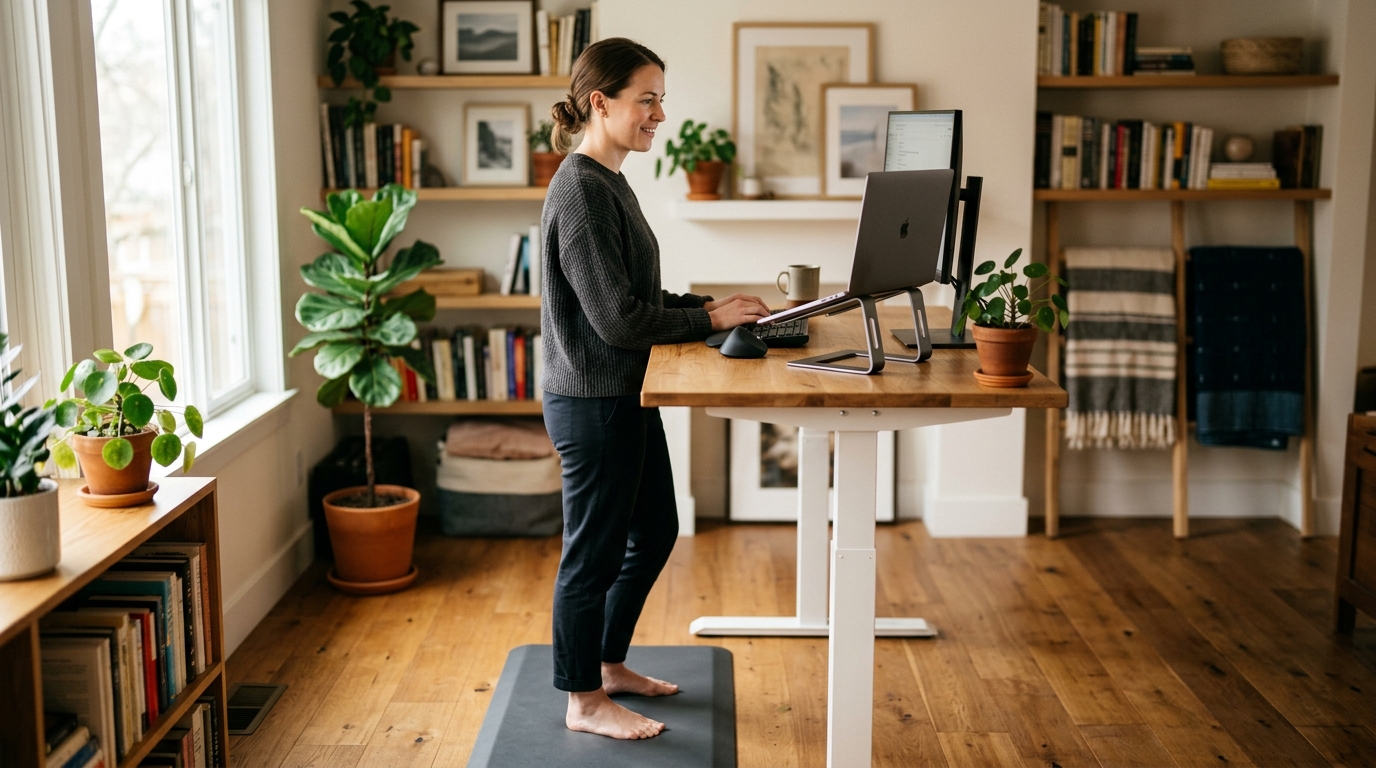
To use a standing desk correctly: set the surface at elbow height (arms relaxed, elbows bent 90 degrees), raise the monitor so the top edge is at standing eye level, place an anti-fatigue mat underfoot, and alternate 30–60 minute sitting blocks with 20–30 minute standing blocks. Done right, a standing desk reduces lower back load — done wrong, it trades one set of aches for another.
What height should your standing desk be?
The correct standing height places the desk surface at elbow height when your arms hang completely relaxed at your sides with elbows bent at 90 degrees. At that height, forearms are roughly parallel to the floor when your hands rest on the keyboard — the same elbow angle that defines correct keyboard height in a seated setup.
How to set it accurately:
- Stand in front of the desk wearing the footwear you actually use while working — height changes by 1–2 inches between bare feet and a standard work shoe, so the shoes matter
- Let both arms hang completely relaxed and shake out any shoulder tension
- Bend both elbows to 90 degrees without lifting the shoulders
- Note where your fingertips naturally rest — that is the target desk surface height
- Adjust the desk and place your hands on the keyboard to confirm: shoulders should not rise to reach it and elbows should not drop below the desk edge
For most people this works out to between 40 and 46 inches from the floor, with standing height typically 2–4 inches higher than the seated desk height that works for them. Use the physical arm-hang test rather than a height table, since individual arm length varies enough to make chart-based estimates unreliable.
Why getting height wrong causes pain: A desk set too low while standing forces the neck forward and shoulders into a rounded position to see the screen — the same forward-head posture that causes upper back pain while sitting, except that it now also loads the feet and legs. A desk set too high requires constant shoulder elevation to reach the keyboard, which produces trapezius and neck tension by mid-morning. Both are common and both are completely preventable by checking the elbow angle before starting work.
How long should you stand at a standing desk?
The evidence from occupational health research is consistent: alternate sitting and standing, do not replace sitting with continuous standing. Both sitting and standing are static postures, and prolonged static load in either position creates musculoskeletal problems — they just affect different structures.
The recommended pattern: 30–60 minutes of sitting followed by 20–30 minutes of standing, cycling throughout the day. New standing desk users should start with 15–20 minute standing blocks and build up over 2–4 weeks. The most common reason people conclude that standing desks do not work is jumping straight to 3–4 hours of standing per day and experiencing foot, calf, and lower back pain that makes the desk feel counterproductive.
A realistic daily plan for 8 working hours:
- Begin the morning seated for 45–60 minutes while your focus is highest
- Raise to standing position and stand for 20–25 minutes
- Return to sitting for 45 minutes
- Repeat the alternation, gradually extending standing blocks as tolerance develops
- Target 2–4 total hours of standing per 8-hour workday after 4–6 weeks
Most electric standing desks from Uplift, FlexiSpot, and Autonomous save two or three height presets so transitioning takes under five seconds and removes the friction that causes people to stop adjusting the desk after the first week. Set a recurring alarm — without a physical prompt, nearly every user reverts to sitting for the full day within two weeks.
Standing posture: what to actually watch for
A standing desk only helps if the standing posture itself is correct. Three mechanical problems appear repeatedly in standing desk users who are experiencing discomfort:
Weight shifting to one leg. When standing becomes uncomfortable, the natural compensation is to shift all weight onto one leg and push the hip out to the side. This position feels temporarily better because it offloads one set of muscles — and it is biomechanically problematic because it loads the lumbar spine asymmetrically on the weighted side. Over 20–30 minutes, asymmetric spinal loading produces the same lower back discomfort that prolonged sitting does. Keep weight centered between both feet, hip-width apart.
Locking the knees. Standing with knees fully extended and locked cuts off circulation in the legs, increases lumbar compression, and fatigues the lower back faster than a micro-bent standing position. Keep a barely perceptible bend in the knees — just enough to unlock the joints and keep the quadriceps lightly engaged without turning the position into a partial squat.
Forward head from a monitor at sitting height. The most common neck error while standing is leaving the monitor at its seated position, which is now below standing eye level. The neck flexes forward and down to see the screen. If neck or upper back pain appears specifically while standing, check the monitor height before anything else.
Correct standing posture checklist:
- Weight centered equally between both feet, hip-width apart
- Knees with a micro-bend — unlocked but not visibly bent
- Pelvis neutral: neither tucked under nor pushed forward
- Shoulders back and slightly down, not rolled forward
- Head stacked over the spine without the chin jutting forward
- Eyes looking horizontally at the top third of the monitor
How to set up your monitor and keyboard at standing height
Monitor repositioning is the most commonly skipped step in standing desk setup — and the one that causes the most complaints about standing desks not working. The monitor must move when the desk does.
Monitor position: The top edge of the monitor should sit at eye level when standing. In practice, standing raises your eye level by 10–14 inches compared to seated, and the monitor needs to go up by roughly the same amount the desk does when you switch positions. A monitor arm handles this automatically — the arm raises and lowers with the desk surface, keeping the screen at the correct relative height without any adjustment. Without a monitor arm, a fixed-height monitor stand will produce a monitor that is too low every time you stand.
For laptop users at a standing desk: treat the laptop as a monitor and raise it on a stand to standing eye level. Connect an external keyboard and mouse to keep hands at desk-surface height. A laptop placed directly on the desk while standing combines a screen too far below eye level with a keyboard at the wrong height — neither improves while standing.
Keyboard and mouse: Position these at desk-surface height. If you use an under-desk keyboard tray at seated height, swing it away or remove it when transitioning to standing, since the tray drops the keyboard 3–4 inches below the desk surface and becomes too low when the desk is at standing height.
Dual monitor note: Both monitors need to be at standing eye level simultaneously. Two monitors at different heights create an asymmetric head position that loads the cervical spine disproportionately on the lower-screen side. A dual-arm monitor mount that spans both screens makes height adjustment across both monitors a single-step operation.
Do you need an anti-fatigue mat?
Yes. An anti-fatigue mat is not a comfort accessory — it is a functional requirement for standing desk use on any hard flooring surface.
Standing on a hard floor compresses the small bones of the feet, collapses the plantar arch, and fatigues the intrinsic foot muscles and calves within 15–20 minutes. Once fatigue sets in, the body compensates by shifting weight, locking the knees, and adopting the asymmetric hip positions that cause lower back strain. An anti-fatigue mat introduces a slight surface give that keeps small stabilizing muscles in the feet and calves lightly active throughout a standing session, dramatically reducing fatigue and extending comfortable standing time.
The two practical mat categories:
- Cushioned terrain mats (Topo by Ergodriven, WellnessMats): provide compression relief plus optional terrain features — ridges, raised edges, toe bars — that encourage subtle weight shifting without requiring any conscious movement
- Balance boards (Fluidstance, Terra by Ergodriven): more active and engaging, better suited to users who have already built standing tolerance over several weeks and want additional movement while at the desk
Minimum mat dimensions: 20 × 30 inches. Most standing desk users find 24 × 36 inches more practical, allowing weight shifts and small steps without stepping off the mat.
| Product | Best for | Rating | Notes | |
|---|---|---|---|---|
| Desk set too low while standing | Causes forward-neck posture and upper back strain while standing | ★☆☆☆☆ | Set to elbow height with arms relaxed and elbows at 90 degrees. Measure in your actual work footwear. | Check price |
| Monitor not repositioned to standing height | Screen stays at sit height and neck flexes down while standing | ★☆☆☆☆ | Use a monitor arm that moves with the desk surface, or manually raise the monitor to standing eye level each session. | Check price |
| No anti-fatigue mat | Foot and calf fatigue within 20 minutes causes compensatory posture | ★☆☆☆☆ | Use a cushioned mat or terrain mat such as the Ergodriven Topo. Hard flooring alone is not adequate for extended standing. | Check price |
| Standing more than 60 minutes continuously | Lower back strain, foot pain, and varicose vein risk from static load | ★☆☆☆☆ | Limit standing blocks to 30-60 minutes and alternate with sitting. Build tolerance over several weeks starting with shorter blocks. | Check price |
| Barefoot or thin-soled footwear while standing | Plantar arch collapse and accelerated fatigue on any surface | ★☆☆☆☆ | Wear supportive footwear with arch support or add cushioned insoles. Dedicated standing desk shoes are not required. | Check price |
Gear that makes standing desk use more comfortable
Best for Anyone who stands 1-4 hours daily and wants passive movement without distraction
Ergodriven Topo Anti-Fatigue Mat
The Topo has become the default recommendation among ergonomics practitioners for standing desk anti-fatigue mats because it solves two problems simultaneously. The foam base provides cushioning to reduce joint compression while standing, and its terrain features — a center ridge, raised platform sections, and a front toe bar — encourage constant subtle weight shifts without requiring any deliberate movement. Those micro-shifts keep the stabilizing muscles of the feet and calves active throughout a standing session, which is what actually prevents the fatigue-driven compensatory postures that cause lower back pain. The standard size is 26 x 30 inches; a mini version covers tighter spaces. Polyurethane foam construction maintains its shape and cushioning through years of daily use.
Check current price on Amazon→Pros
- Terrain features encourage passive micro-movement throughout each standing session without any effort or conscious attention
- Durable polyurethane foam maintains cushioning and shape after years of daily use — does not compress flat
- Easy to clean and resistant to liquids and typical desk-area debris
- Works well with socks or supportive footwear on hardwood, tile, and concrete surfaces
Cons
- Higher price than flat foam mats — $99 versus $30-50 for basic alternatives — though the durability difference offsets the gap over time
- Terrain features require a 2-3 day adjustment period; the toe bar and raised sections feel unusual at first
- The 26 x 30 inch footprint requires more clear floor space than a flat mat
Best for Users who transition between sit and stand height and need the monitor to follow automatically
Ergotron LX Desk Monitor Arm
The Ergotron LX is the reference-standard single-monitor desk arm used in most office ergonomics setups and workplace assessments. Its spring-assisted arm adjusts vertically across a 13-inch range with one hand and minimal force — precisely the range needed to keep the screen at correct eye level through both seated and standing positions. The C-clamp base attaches to most desk edges without drilling; a grommet mount is included for desks with pre-drilled holes. Compatible with monitors up to 34 inches and 25 lbs. Internal cable routing keeps cords inside the arm and off the desk surface. A dual-monitor version (LX Dual) handles two screens from a single post.
Check current price on Amazon→Pros
- 13-inch vertical adjustment range covers the full sit-to-stand height difference in a single smooth motion
- One-hand repositioning between seated and standing positions takes under 5 seconds
- Internal cable management routes cords cleanly inside the arm, eliminating monitor cable droop
- Holds position precisely after adjustment — no drift or gradual sag over years of use
Cons
- Requires a clampable desk edge or grommet hole; will not mount to desks with thick lips or enclosed cable channels that block the clamp
- At $120-160 it sits at the higher end of single-arm pricing — budget alternatives in the $50-80 range provide adequate vertical range with less refined motion control
- Setup and spring tension calibration takes 20-30 minutes to get the arm balanced correctly for the monitor weight
What to skip
Standing for the full workday from day one. The most common standing desk mistake is attempting to use the desk exclusively in the standing position immediately after setup. Standing for 6–8 hours daily before the stabilizing muscles of the feet, calves, and lower back have adapted produces significant discomfort and causes most new users to abandon the desk entirely within two weeks. Build standing time gradually over 4–6 weeks, starting with 15–20 minute blocks.
Thin or budget anti-fatigue mats under 3/4 inch. Foam mats marketed as anti-fatigue at low price points often measure less than 1/2 inch thick and compress flat under daily use within 4–8 weeks. The minimum effective thickness for standing desk use is 3/4 inch; 1 inch or more is preferable. The Topo, WellnessMats, and FlexiSpot mat all meet this standard. Dollar-store foam inserts and yoga mats do not provide equivalent compression resistance.
A balance board as the first standing desk purchase. Balance boards like the Fluidstance Level or Terra by Ergodriven are well-designed products suited to experienced standing desk users who have already built 45–60 minute standing tolerance. Starting with a balance board before stabilizing muscles are conditioned for standing loads adds instability before the foundation is in place. Begin with a terrain mat, build standing tolerance over 4–6 weeks, then progress to a balance board if more active engagement is wanted.
Assuming the desk only needs one setup. A standing desk set up once and never adjusted again is just a desk at an awkward height. Height and position preferences change as posture improves, footwear changes, or the work surface is rearranged. Check the elbow angle test and monitor height periodically — especially in the first month of use, when most of the fine-tuning happens.
FAQ
Frequently asked questions
How long should I stand at a standing desk per day?
What is the correct height for a standing desk?
Why does my lower back hurt when I use a standing desk?
Can I use a standing desk without an anti-fatigue mat?
Is standing all day better than sitting all day?
How do I remember to alternate between sitting and standing?
Do I need special shoes for a standing desk?
Bottom line
Correct standing desk use comes down to four variables: set the surface at elbow height in your actual work footwear, raise the monitor to standing eye level every time you switch positions, place a quality anti-fatigue mat underfoot, and alternate 30–60 minute sitting blocks with 20–30 minute standing blocks. A monitor arm is the most functionally useful upgrade after the mat, since it makes the monitor repositioning automatic.
Most standing desk discomfort is a setup or usage pattern problem — desk too low, monitor not repositioned, standing too long without a break — rather than an inherent limitation of the desk. Fix the height, use the mat, and build up standing time gradually before drawing conclusions about whether the setup is working.
For anti-fatigue mat options ranked and compared, see best standing desk mats. To evaluate whether a height-adjustable desk is worth the investment for your situation, read sitting vs. standing desk. For the complete ergonomic picture in both seated and standing positions, see how to set up an ergonomic workstation and how to fix back pain at your desk.