guides
Ergonomic Home Office Setup for Programmers
The complete ergonomic home office guide for programmers: split keyboards, dual-monitor positioning, chair setup, and wrist pain prevention.
 Daniel Osei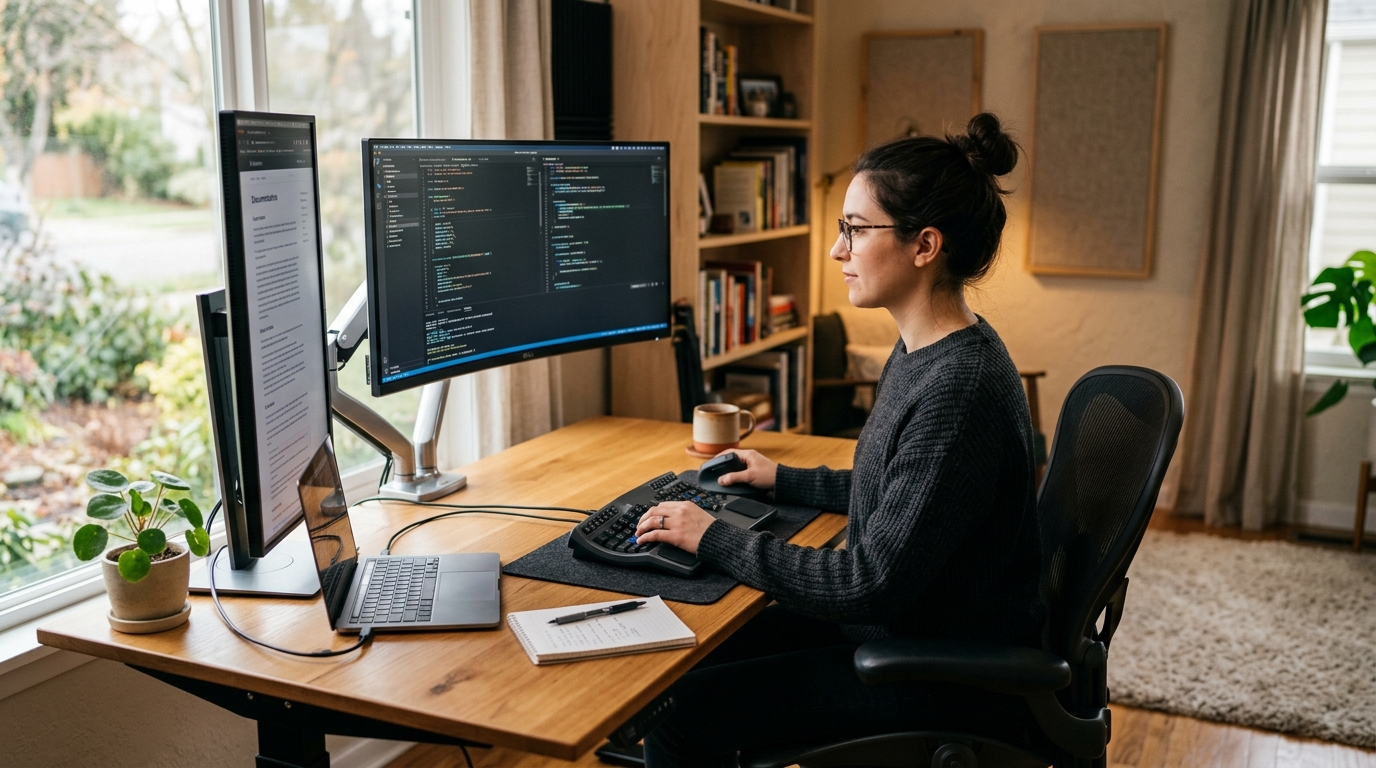
For programmers, the most impactful ergonomic changes are a split keyboard at neutral or negative tilt, a chair adjusted for active typing posture rather than resting posture, dual monitors with top edges at eye level via a monitor arm, and a vertical mouse or trackball to reduce forearm pronation. Most repetitive strain symptoms in developers trace back to these four items.
Why programmers need different ergonomic advice
Most ergonomics guides are written for office workers who split time between typing, reading, and phone calls. Programmers have a different exposure profile: 6 to 9 hours of sustained keyboard use per day, concentrated mouse use during IDE navigation and debugging rather than continuous mouse use, and multi-monitor configurations that create neck rotation patterns not present in single-screen work.
This creates two specific risk patterns. First, keyboard-dominant repetitive strain: standard keyboards force both wrists into ulnar deviation to reach the central columns, and developers who type over a million keystrokes per month accumulate that deviation far faster than typical office workers. Second, multi-monitor neck loading: if secondary monitors are positioned at the wrong height or angle — which they almost always are — cervical spine facets accumulate load across the workday in ways that a single correctly-positioned monitor would not create.
The guidance below is organized as a setup sequence. Do the steps in order, because each depends on the one before it.
Step 1: Set up the chair for sustained typing
Chair setup for programmers follows the same baseline rules as for any desk worker — feet flat on the floor, hips slightly higher than knees, lumbar support at beltline — but two adjustments matter especially for heavy keyboard use.
Set armrests to typing height, not resting height. Your armrests should support your forearms while you are actively typing, which means a slightly higher position than the armrest height that feels comfortable when your hands are idle. With hands on the keyboard, forearms should be parallel to the desk or angled very slightly downward, with no shoulder elevation at all. If your shoulders lift even slightly when your forearms contact the armrests, the armrests are too high.
Tighten lumbar focus to beltline contact. Programmers frequently adopt a posterior pelvic tilt — pelvis rolled back, lower back rounded — when concentrating on a problem. A lumbar support set precisely at the L4-L5 level (your beltline) resists this pattern more effectively than a lumbar pad positioned too high or too low. Adjust the lumbar until you can feel it making contact with the small of your back when seated upright.
For the chair itself: any chair with height adjustment, adjustable lumbar, and adjustable armrests covers the baseline requirement. The Herman Miller Aeron PostureFit SL supports both the sacrum and lumbar simultaneously, which is well-suited to the extended sitting common in engineering. For a lower-cost option with genuine adjustability, the Branch Ergonomic Chair at $329 covers most of the critical adjustments without the premium-brand price.
Step 2: Position the desk and keyboard for intensive typing
Desk height follows the standard rule: desk surface 1 to 2 inches below elbows with forearms parallel to the floor. What distinguishes the programmer setup is the keyboard selection and placement.
Use a split or tented keyboard if you type 4 or more hours per day. Standard keyboards force both wrists into ulnar deviation — bent toward the pinky side — to reach the central key columns. A split keyboard separates the two halves so each hand floats in its natural resting position with no inward wrist rotation. The difference in tendon and median nerve loading over a long workday is substantial.
Best for Best first split keyboard for most developers
Logitech ERGO K860 Split Keyboard
Fixed-split curve with built-in palm rest and negative tilt legs. The same key layout as a standard keyboard, just split in the middle — which means near-zero relearning curve. Membrane keys run quiet in shared workspaces. A practical starting point before committing to a fully mechanical split with a new key layout.
★★★★☆ 4.4 · 3,200 reviews
Check current price on Amazon→Best for Best for developers with existing wrist or forearm pain
Kinesis Advantage2 Ergonomic Keyboard
Contoured bowl design positions keys in a vertical arc that eliminates both ulnar deviation and wrist extension at the same time. Two to three weeks of slower typing before fluency returns, then most users end up typing faster than before. Fully programmable — popular among Vim and Emacs users for thumb cluster remapping. Meaningful symptom reduction reported by developers with repetitive strain injuries.
★★★★★ 4.6 · 1,800 reviews
Check current price on Amazon→Never use positive keyboard tilt. The plastic feet at the back of most keyboards exist for retail display, not ergonomics. Flipping them down angles the keyboard toward you, which forces your wrists into extension throughout the entire typing session. Extension combined with ulnar deviation is the posture most associated with carpal tunnel syndrome. Keep the keyboard flat or use negative tilt (sloping away from you) if the keyboard supports it — the Logitech ERGO K860 ships with negative tilt legs for this reason.
Keep the keyboard at the desk edge. Programmers frequently push the keyboard back to make room for notes or coffee. Every inch back from the desk edge moves your elbows forward from your sides, which causes your shoulders to roll inward across the workday. The keyboard should be close enough that your elbows stay roughly at your sides when typing.
Step 3: Set up monitors for programming work
Single-monitor positioning
For a single monitor, standard positioning applies: top edge at eye level, arm-length distance (24 to 28 inches from your eyes), top of the screen tilted 10 to 15 degrees away from you.
For code specifically, a 27 to 32-inch display at 1440p or 4K is worth the upgrade over a 24-inch 1080p monitor. At 1440p on a 27-inch screen, you can run two 80-character code panes side by side at a legible font size — a common programming layout that a 1080p display cannot accommodate without sacrificing font readability.
Dual-monitor positioning for programmers
Two monitors is the most common programmer configuration, and monitor positioning errors are nearly universal among developers who set it up without guidance.
| Product | Best for | Rating | Notes | |
|---|---|---|---|---|
| Both monitors centered equally | Use both displays equally (split editors, two codebases) | ★★★★☆ | Center line of sight between the two bezels. Both at same height with top edges at eye level. Angle each 15-20 degrees inward toward you. | Check price |
| Primary centered, secondary to side | Main coding display plus docs or terminal on the side | ★★★★★ | Primary monitor directly in front. Secondary at 30-45 degrees to your non-dominant side at the same height. Reducing time on secondary limits head rotation. | Check price |
| Vertical main plus horizontal secondary | Long code files on portrait monitor, reference docs horizontal | ★★★★☆ | Portrait orientation on the main monitor for long vertical scrolling. Horizontal secondary to the side for documentation, browser, or Slack. | Check price |
The most common dual-monitor error is placing the two monitors at different heights, with the secondary monitor lower (often sitting flat on the desk while the primary is on a riser). This forces your head to tilt down each time you look at the secondary screen, which compounds cervical loading across the workday. Both monitors should have their top edges at exactly the same height — eye level — and both should be angled inward toward you rather than parallel to each other.
Best for Best monitor arm for any ergonomic desk setup
Ergotron LX Dual Monitor Arm
Gas-assisted arm that holds a monitor from 3 inches off the desk up to eye level on a tall user. The dual-arm version positions two monitors independently, each adjustable to the same exact height. Works with any VESA 75 or VESA 100 display up to 25 pounds. Adjustment holds for years without retightening. Frees up the desk surface below the monitors for keyboard and mouse placement.
★★★★★ 4.7 · 12,400 reviews
Check current price on Amazon→Step 4: Choose a mouse for code-heavy work
Programmers often underestimate mouse usage. IDE navigation — jumping between files, right-click context menus, debugging tool panes — along with browser use for documentation and code review tools adds up to significant pointing device time even in keyboard-heavy roles. The standard flat mouse during this time requires continuous forearm pronation (palm-down rotation), which is the posture most associated with forearm tightness and lateral epicondyle strain.
For general programmer use: the Logitech MX Vertical at $80 to $110 rotates your forearm 57 degrees toward neutral. The adjustment takes one to two days; most users stop noticing the difference in about a week. The wireless version works on multiple devices — useful if you switch between a desktop and laptop.
For programmers with existing forearm or wrist symptoms: a thumb-operated trackball mouse like the Logitech MX ERGO eliminates mouse movement entirely. The cursor is moved by rolling the ball with the thumb while the hand and wrist stay stationary. This is the most conservative option for users who already have symptoms, because it removes the lateral wrist and forearm motion that a vertical mouse still requires.
For programmers with trackpad preference: a large-surface trackpad reduces the repetitive scroll-wheel motion during long code file navigation. Scrolling with a trackpad uses a full-hand swipe rather than a small repetitive wrist flick.
Step 5: Manage eye strain from code on screens
Eye strain among programmers is disproportionately common, driven by two factors: the high contrast of a dark-mode IDE against a bright display, and the sustained close-focus distance of reading text for hours. Both are addressable with setup changes rather than equipment purchases.
Match monitor brightness to ambient light level. The most common mistake is running monitors at full brightness in a room with normal or dim ambient lighting. Your eyes continuously adapt between the bright screen and the dimmer surroundings, which causes ciliary muscle fatigue. Reduce monitor brightness until the white areas of your browser match the appearance of a piece of white paper held next to the screen.
Add bias lighting behind the monitor. A USB LED strip attached to the back of the monitor, directed at the wall, raises the average brightness in your field of vision without adding glare to the screen. This reduces the amplitude of the brightness difference between the screen and surroundings — the core mechanism behind prolonged screen fatigue. The benefit is especially pronounced with dark-mode IDEs, where the contrast between black code windows and any surrounding light source is at its maximum.
Follow the 20-20-20 rule. Every 20 minutes, look at something at least 20 feet away for 20 seconds. This gives the ciliary muscles that control focal length a brief recovery period. Free apps such as Stretchly and BreakTimer automate the reminder and are less disruptive than setting phone alarms. This habit prevents more cumulative eye strain than any monitor filter or display setting.
Dark mode reduces some eye strain factors but not all. Dark-mode IDEs lower total blue-spectrum light emission, which helps in a dim room. They do not reduce the accommodation effort of sustained close-focus work — that is what the 20-20-20 rule addresses. Use both.
How to tell if your programmer ergonomics are working
Give the setup two weeks before evaluating. These remaining symptoms each point to a specific remaining issue:
Neck pain or upper shoulder tightness at the end of the workday: the top of the primary monitor is not at eye level. Raise the monitor with an arm or riser. With dual monitors, verify both tops are at exactly the same height.
Wrist pain or finger tingling: the keyboard is using positive tilt, or you are resting your wrists on the desk while actively typing rather than floating your hands above the keys. Fix the tilt first. If symptoms continue after two weeks of correct tilt, switch to a split keyboard.
Forearm tightness or elbow pain on the mouse side: the mouse is positioned too far from your body, requiring arm reach to operate it. Move the mouse to the desk edge and keep your elbow close to your side when using it. Consider switching to a vertical mouse if the symptoms persist.
Lower-back pain after long sessions: the lumbar support is not making contact with your lower back. Adjust it upward or forward until it touches the small of your back when seated upright. If the current chair has no adjustable lumbar, the chair itself is the limiting factor.
FAQ
Frequently asked questions
Do I need a split keyboard or will any ergonomic keyboard work?
Is a mechanical keyboard more ergonomic than a membrane keyboard?
How many monitors do programmers need ergonomically?
Should programmers use a standing desk?
How should programmers use a wrist rest?
Does dark mode reduce eye strain for developers?
Bottom line
Set up in sequence: chair and armrests first, desk height second, keyboard placement third, monitors last. Use a split keyboard at flat or negative tilt. Set both monitor top edges at eye level with a monitor arm. Position the mouse at the desk edge with your elbow at your side. Add bias lighting behind the monitor and use the 20-20-20 rule for eye strain.
For deeper guidance on each component, see the best ergonomic keyboards, best ergonomic mice, sitting vs standing desk comparison, and the ergonomic office setup guide.