roundups
Best Ergonomic Accessories Under $100 for 2026
Top ergonomic accessories under $100: vertical mice, wrist rests, monitor arms, footrests, and laptop stands that ease pain without a big budget.
 Daniel Osei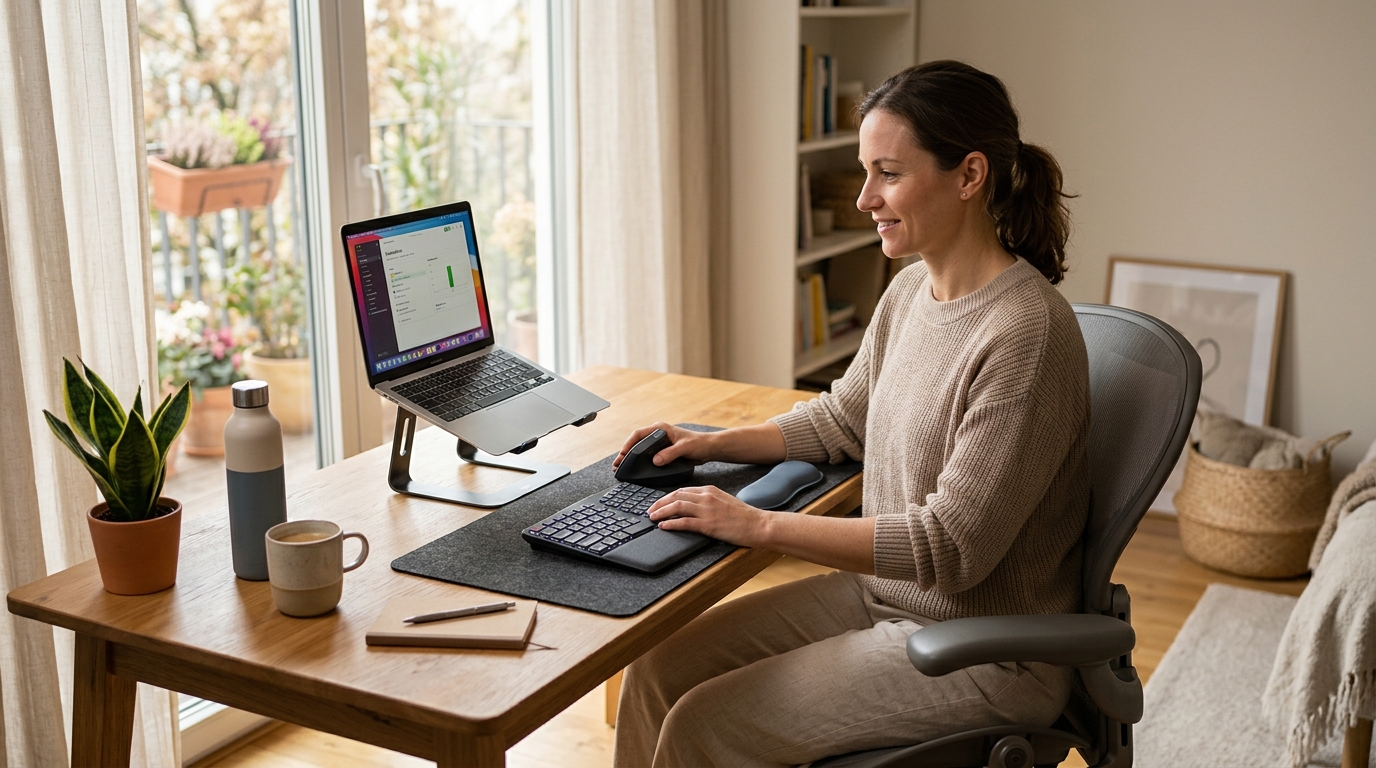
The Logitech MX Vertical is the best ergonomic accessory under $100 for most desk workers — it corrects wrist posture immediately at around $90. For the highest combined impact on a tighter budget, pair the Anker Vertical Ergonomic Mouse ($35) with a VIVO monitor arm ($40) to fix hand angle and screen height in two purchases under $80.
Most desk discomfort traces to a short list of fixable structural problems: wrist supination during mouse use, a monitor positioned too low for the seated eye level, no support under the keyboard wrist zone, and feet that hang without a floor contact point. None of these require expensive solutions. The six picks below address each problem with products that all land under $100 — several under $40 — without sacrificing the quality needed to produce a lasting ergonomic improvement.
What makes an ergonomic accessory worth buying under $100?
The ergonomic accessory market is full of products that claim health benefits while delivering cosmetic changes. A wrist rest that looks orthopedic but provides no meaningful support, a monitor stand that adds an inch of height without angle adjustment, a footrest that tips over the first time you shift your weight — these are the purchases that teach desk workers to distrust ergonomic claims entirely.
Three filters separate genuinely useful under-$100 accessories from the noise. First, the product must address one of the five documented desk ergonomic gaps: hand angle during mouse use, screen height relative to seated eye level, wrist support during keyboard pauses, foot and hip support from the seated position, and neck angle from screen or document distance. Second, the product must work reliably through at least three years of daily use — not just the first month after purchase. Third, the ergonomic benefit must be measurable rather than claimed: a vertical mouse demonstrably reduces forearm pronation; a footrest demonstrably raises thigh-to-hip angle toward neutral.
The picks below pass all three filters. None of them require a physiology background to set up correctly. Most produce a noticeable posture improvement within the first session.
Quick comparison
| Product | Best for | Rating | Notes | |
|---|---|---|---|---|
| Logitech MX Vertical Mouse | best overall ergonomic upgrade under $100 | ★★★★★ | $85-95. Wireless, 57-degree handshake angle, MagSpeed scroll, USB-C charging. | Check price |
| Anker Ergonomic Vertical Mouse | best budget vertical mouse | ★★★★☆ | $30-40. Wired, 5 DPI settings, thumb rest, silent click option available. | Check price |
| 3M Gel Wrist Rest for Keyboard | best keyboard wrist support under $30 | ★★★★★ | $20-30. Firm gel pad, non-slip base, 18-inch length for full-size keyboards. | Check price |
| VIVO Single Monitor Arm | best budget monitor arm | ★★★★★ | $30-45. VESA 75/100, up to 32-inch screens, full tilt-swivel-rotate adjustment. | Check price |
| Kensington SoleMate Footrest | best ergonomic footrest under $60 | ★★★★☆ | $40-55. Three-position incline, non-slip surface, promotes active circulation. | Check price |
| Nulaxy Laptop Stand | best budget laptop riser for eye-level use | ★★★★★ | $25-35. Six height levels, folds flat, supports up to 22 lb, universal fit. | Check price |
The picks
Best overall ergonomic accessory under $100: Logitech MX Vertical Mouse
Best for desk workers who use a standard mouse for 4 or more hours per day and experience wrist or forearm discomfort
Logitech MX Vertical Mouse
The Logitech MX Vertical holds the wrist at a 57-degree handshake angle rather than flat — this single change reduces forearm muscle activation by roughly 10 percent compared to a standard horizontal mouse in independent electromyography studies. The practical result is that wrist and forearm fatigue that accumulates across a multi-hour session arrives later or not at all. Beyond the angle correction, the MX Vertical earns its price with wireless operation via Bolt receiver or Bluetooth, the same MagSpeed scroll wheel found in the premium MX Master series, and a precision sensor that tracks accurately on fabric, wood, and glass. The ergonomic housing is not an afterthought grafted onto a budget sensor — it is a full-featured wireless mouse built around the correct forearm angle. At $85-95, it is the most expensive pick in this roundup and also the one most likely to eliminate pain that desk workers have been accepting as an unavoidable part of long sessions.
★★★★★ 4.6 · 15,800 reviews
Check current price on Amazon→Pros
- A 57-degree handshake angle measurably reduces forearm pronation and the associated wrist and elbow strain during sustained mouse use
- Wireless via Logitech Bolt receiver or Bluetooth — no cable drag that interferes with the vertical grip during wide lateral movements
- MagSpeed scroll wheel switches between ratchet and free-spin modes for fast document and spreadsheet navigation
- High-precision sensor tracks on glass, fabric, and wood surfaces without requiring a mouse pad
- Rechargeable via USB-C with a quoted 4-month battery life per charge — no AA batteries and no charging station footprint
Cons
- $85-95 is the most expensive pick in this roundup — users who want to test vertical ergonomics before committing should start with the Anker at $35
- Available in one grip size only — users with very small or very large hands may find the handshake angle does not conform naturally
- Vertical mice have a learning curve of 3 to 5 days before cursor control feels as precise as a standard mouse
- Right-hand only — no left-handed version of the MX Vertical is available
Best budget vertical mouse: Anker Ergonomic Vertical Mouse
Best for users who want to experience vertical mouse ergonomics without committing to a premium price before testing the concept
Anker Ergonomic Vertical Mouse
The Anker Ergonomic Vertical Mouse delivers the same fundamental postural correction as the Logitech MX Vertical — forearm rotated to the handshake position, wrist pressure reduced, elbow angle improved — at roughly a third of the price. It is wired, which removes the wireless premium and also eliminates any charging obligation. Five DPI settings from 800 to 1600 cover the range needed for standard monitor resolutions, and a dedicated DPI button on the thumb side makes mid-session sensitivity changes accessible without software. The build is noticeably lighter than the Logitech and the sensor performance on non-standard surfaces is less consistent, but for the purpose of confirming that a vertical mouse eliminates your specific discomfort before spending $90, the Anker is the correct first step. Many users find they stay with it permanently.
★★★★☆ 4.4 · 22,400 reviews
Check current price on Amazon→Pros
- Delivers the same ergonomic forearm angle correction as a premium vertical mouse at $30-40 — about a third of the Logitech MX price
- Wired connection removes any charging obligation and eliminates wireless latency or pairing issues
- Five DPI settings with a dedicated thumb-side DPI button for quick in-session sensitivity adjustment
- Silent click variant available for open office or shared workspace environments
- Available in both right-hand and ambidextrous versions to serve a broader range of users
Cons
- Wired only — cable drag is more noticeable on a vertical mouse during wide lateral movements than on a standard mouse
- Sensor performance on glass or heavily textured fabric surfaces is inconsistent compared to premium alternatives
- Lighter build quality than premium vertical mice — the scroll wheel develops a looser feel over extended use
- Limited to 1600 DPI maximum — users with high-resolution or ultrawide monitors may need higher sensitivity settings
Best keyboard wrist rest under $30: 3M Gel Wrist Rest for Keyboard
Best for keyboard-heavy workers who experience wrist pressure or discomfort from sustained contact with the desk edge during long typing sessions
3M Gel Wrist Rest for Keyboard
A persistent misconception about wrist rests is that they should support the wrist during active typing — they should not. A wrist rest supports the wrist during pauses between keystrokes, keeping the joint neutral rather than suspended in the air or pressing against a hard desk edge. The 3M gel pad gets this right: the firm gel resists full compression so the wrist stays elevated rather than sinking into a soft cushion that flexes the joint. The 18-inch length spans a full-size keyboard including the numpad, and a non-slip base keeps the pad stationary during extended sessions. At $20-30, it is the lowest-cost pick in this roundup with immediate measurable wrist pressure reduction for heavy keyboard users.
★★★★★ 4.5 · 8,700 reviews
Check current price on Amazon→Pros
- Firm gel core resists full compression — the wrist stays elevated rather than sinking into a soft cushion that creates a flexed joint angle
- 18-inch length covers the full width of a standard keyboard including the numpad without leaving gaps
- Non-slip base stays stationary during extended typing sessions without adhesive or clamps
- At $20-30, the lowest-cost pick in this roundup with an immediate and measurable reduction in wrist edge pressure
- Machine-washable fabric cover maintains hygiene during long-term daily use without disassembly
Cons
- Gel surface retains heat during prolonged wrist contact and feels noticeably warm in higher-temperature office environments
- A wrist rest cannot compensate for an incorrectly positioned keyboard — if the keyboard sits too high, the gel rest does not fully correct the wrist angle
- The 18-inch version is sized for full-size keyboards; compact TKL or 60-percent users should size down to avoid unused overhang
- Correct technique requires lifting the wrists during active keystrokes and resting only during pauses — users who lean on it constantly reduce its ergonomic benefit
Best budget monitor arm: VIVO Single Monitor Arm
Best for users with a standard desk monitor who want full height, tilt, and swivel adjustability without paying a premium
VIVO Single Monitor Arm
A monitor arm under $50 changes the ergonomic calculus at a desk more than almost any other single accessory. The fixed-height monitor stand that ships with most displays positions the screen 2 to 4 inches below ergonomic eye level for the majority of adult seated heights. Correcting this with a riser adds surface footprint; correcting it with an arm eliminates the stand footprint entirely and opens the desk underneath. The VIVO single arm clamps to desk edges up to 3.25 inches thick, accepts VESA 75 and 100 mounts, handles screens up to 32 inches and 22 lb, and allows full tilt, swivel, and height adjustment across a range that fixed risers cannot approach. The arm holds position reliably without drift. At $30-45, it is the clearest case in this roundup for abandoning the stock monitor stand permanently.
★★★★★ 4.5 · 35,200 reviews
Check current price on Amazon→Pros
- Eliminates the monitor stand footprint entirely — frees the desk surface area the stand base was previously occupying
- Full tilt, swivel, and height adjustment lets users dial in the exact eye-level screen position that a fixed riser cannot provide
- VESA 75 and 100 compatibility covers virtually all modern flat-panel monitors from 13 to 32 inches
- Supports monitors up to 32 inches and 22 lb — sufficient for the large majority of standard office setups
- Clamp mount requires no desk drilling and is removable without surface damage if needed
Cons
- Arm is stiffer than premium alternatives like the Ergotron LX — repositioning requires deliberate effort rather than single-handed float adjustment
- Clamp mount does not work on non-standard desk edges — grommet mounting is available but requires drilling
- Arm extends up to 15 inches from the desk edge — not ideal for monitors placed close to a wall with minimal forward clearance
- At the upper weight limit of 22 lb the arm can creep downward over time and may require periodic re-tightening of the tension bolt
Best ergonomic footrest under $60: Kensington SoleMate Footrest
Best for shorter-statured users whose feet do not fully reach the floor at proper seated desk height, and anyone experiencing hip or lower-back fatigue from prolonged sitting
Kensington SoleMate Footrest
Foot support is the most consistently overlooked element of ergonomic desk setup. When feet hang unsupported, the thigh compresses against the front of the seat pan, reducing blood flow to the lower leg and tilting the pelvis rearward into a posture that loads the lumbar spine. The Kensington SoleMate addresses this with a platform adjustable from 4 to 15 degrees across three fixed positions — enough range to neutralize thigh-to-floor gaps of 1 to 4 inches for most users. The non-slip surface grips shoe soles reliably during the subtle foot shifting of long sessions, and the integrated massage-point texture encourages the micro-movement that keeps lower-leg circulation active. At $40-55, it costs less than most ergonomic cushions and addresses the root hip-and-lumbar cause rather than masking its symptoms.
★★★★☆ 4.3 · 5,600 reviews
Check current price on Amazon→Pros
- Three-position incline from 4 to 15 degrees accommodates foot-to-floor height gaps from 1 to 4 inches for most standard desk heights
- Non-slip surface keeps feet anchored through the micro-movements that characterize sustained seated work
- Integrated massage-point texture encourages active foot movement that promotes circulation in the lower leg
- Compact footprint slides under the desk and out of the way without creating a trip hazard during repositioning
- Addresses hip and lumbar root causes of lower-body desk fatigue rather than treating only the downstream symptoms
Cons
- Three fixed incline positions rather than continuous adjustment — some users land between positions without a perfect fit
- The 4-to-15-degree range may not reach far enough for users with the tallest chair heights or smallest stature combined
- Non-slip surface texture is firm and may be uncomfortable for users who prefer to work without shoes at their desk
- Does not rock or tilt actively — users who prefer a dynamic footrest platform should consider rocker-style alternatives
Best budget laptop stand: Nulaxy Laptop Stand
Best for laptop users who need the screen raised to eye level for ergonomic desk use — requires a separate keyboard and mouse to use effectively
Nulaxy Laptop Stand
A laptop used as a primary desktop display at its native screen angle is a posture trap. The standard 30-degree tilt positions the display 8 to 12 inches below eye level for most seated desk heights, which forces a sustained forward head tilt that loads the cervical spine continuously across a work session. Raising the screen to eye level requires a stand. The Nulaxy provides six height levels from 2.4 to 8.4 inches — enough range to position a laptop display at proper eye level for most users. Rubber-padded arms grip the chassis without adhesive, the open frame preserves ventilation port airflow, and the stand folds to 0.6 inches for bag portability without a dedicated sleeve. At $25-35, it is the most cost-effective route to correcting the primary ergonomic failure of laptop-at-desk use.
★★★★★ 4.6 · 18,300 reviews
Check current price on Amazon→Pros
- Six height levels from 2.4 to 8.4 inches cover the adjustment range needed to hit eye level for most laptop-at-desk seated heights
- Rubber-padded arms grip the laptop chassis securely without adhesive, sticky residue, or permanent attachment to the device
- Open frame design preserves laptop ventilation port airflow and does not trap heat around the chassis during intensive tasks
- Folds to 0.6 inches for bag portability — no dedicated laptop bag sleeve required and no disassembly needed
- At $25-35, the most cost-effective fix for the cervical strain caused by the standard laptop screen angle during desk use
Cons
- Requires a separate keyboard and mouse — at laptop eye level the built-in keyboard becomes unreachable for comfortable typing
- Six fixed height positions rather than continuous adjustment — some desk-and-chair combinations land between height increments
- Rubber arm pads show compression and wear after 2 to 3 years of daily use and may need replacement to maintain a secure grip
- Open frame collects cables routed through its legs during use and requires occasional untangling during repositioning
What to skip
Flat gel mouse pads marketed as ergonomic: A gel border built into a flat mouse pad does not change the fundamental wrist angle problem caused by a standard horizontal mouse. The gel cushions wrist pressure at the desk edge — a minor comfort improvement — but does not address the forearm pronation that causes sustained wrist and elbow discomfort during mouse use. A vertical mouse corrects the root posture; a gel mouse pad treats a secondary symptom while leaving the primary problem intact.
Seat cushions without lumbar support: Memory foam seat cushions add surface comfort but do not correct the pelvis position that causes lumbar loading during prolonged sitting. The lumbar region needs active posterior support to maintain a forward pelvic tilt — a seat cushion alone does not provide this. For seated posture correction, a dedicated lumbar support pillow addresses the spine rather than only the contact surface.
Cheap standing desk converters under $40: Budget spring-loaded and screw-adjusted converters in this price range typically have limited stability, narrow surface area, and keyboard trays that flex during typing. The ergonomic benefit of a standing position disappears when the monitor wobbles during mouse use or the keyboard shifts under keystroke pressure. If a full standing desk is not in the budget, a monitor arm to optimize seated posture delivers more reliable ergonomic improvement at the same price point.
How to prioritize your ergonomic upgrade
The six accessories above address six distinct ergonomic problems. If the budget allows only one or two purchases, prioritize by symptom:
- Wrist or forearm pain during mouse use — A vertical mouse is the highest-impact single purchase for the majority of desk workers. Start with the Anker at $35 to test the concept; move to the Logitech MX Vertical if the improvement confirms the approach.
- Neck pain or forward head tilt — Fix screen height first, before adding any other accessory. The VIVO monitor arm ($35-45) handles a standard desk monitor; the Nulaxy stand ($25-35) handles a laptop used at a desk.
- Wrist pressure during keyboard use — The 3M Gel Wrist Rest at $20-30 delivers immediate relief for heavy keyboard users at the lowest cost in this roundup.
- Hip or lower-back fatigue from seated position — The Kensington SoleMate footrest addresses the root cause in a way that most seat cushions do not.
Address pain in symptom order rather than purchasing all six at once — this lets each addition produce a measurable, attributable improvement rather than a combined adjustment that is difficult to evaluate.
FAQ
Frequently asked questions
What is the best ergonomic accessory under $100 for reducing wrist pain?
Do ergonomic accessories under $100 actually make a difference?
Is a vertical mouse worth buying for desk ergonomics?
What is the cheapest ergonomic upgrade with the biggest impact?
Do I need a monitor arm or is a monitor riser enough?
Bottom line
The Logitech MX Vertical is the single best ergonomic purchase under $100 for most desk workers — it corrects the wrist angle that standard mice cannot and produces measurable fatigue reduction across long sessions. For tighter budgets, the Anker Vertical Mouse at $35 delivers the same postural correction at proof-of-concept cost. A VIVO monitor arm fixes screen height for under $45 and reclaims the surface footprint the stand base was occupying. A 3M wrist rest and Kensington footrest add wrist and hip support for under $75 combined.
For the complete ergonomic desk picture: ergonomic workstation setup guide, best standing desk accessories, best ergonomic keyboards, best wrist rests.